# UI guide
[简体中文](../../zh-CN/guides/ui-guide.md) | **English** | [Documentation](../README.md)
You meet dsh-mnemon in three places. The conversation shows what each turn read and wrote, and lets you save a reply to memory. The **Memory System** is where you browse, search and edit what is stored. The `dsh-mnemon` page under **Plugins** is where you compose memory and change settings.
| Where | What you do there | How to open it |
|---|---|---|
| [In a conversation](#in-a-conversation) | See the memory and skills a reply used, and open them in one click; save a reply to memory | Under each finished reply |
| [The Memory System](#the-memory-system) | Check status; browse, search and edit runtime memory, documents and memory spaces; manage skills | **Memory System** in the sidebar, or a session tab |
| [On the Plugins page](#on-the-plugins-page) | Choose strategies and enhancements; set up components, storage and the interface | **Plugins → dsh-mnemon**, or the gear in the Memory System header |
The recordings and screenshots come from the [v0.5.32 gallery](../../assets/webui/README.md): a real DSH 0.2.1 WebUI in light appearance with a seeded, fictional project, Lumen. The live DeepSeek model wrote every answer, write and receipt; waits for the model play at 4x or 6x, marked in the lower right corner. A local Ollama served embeddings at Mnemon's default endpoint, with the Mnemon Native embedding settings at their default, so every memory has a vector. The Skills screens come from the [v0.5.34 Skills gallery](../../assets/skills/README.md), on the same project with a scripted model.
Two rules hold everywhere. **Switches and selectors apply as soon as you change them**; if a write fails, the control shows the saved value again next to the reason. **Typed values wait for their group's Apply**, which appears once something changed, together with a note on what applying will do.
Runtime settings also offer **Snapshot refresh** (default **Refresh on change**; opt into **Freeze at session start** to keep open conversations pinned to their initial snapshot for prompt-cache stability while new sessions and recall tools read live memory) and **Read low-priority memory on demand** (off by default). The deferral switch keeps unpinned low-priority entries in storage and the management list, while the model reads them through scoped search instead of receiving them in every prompt. Pinned entries remain projected.
## In a conversation
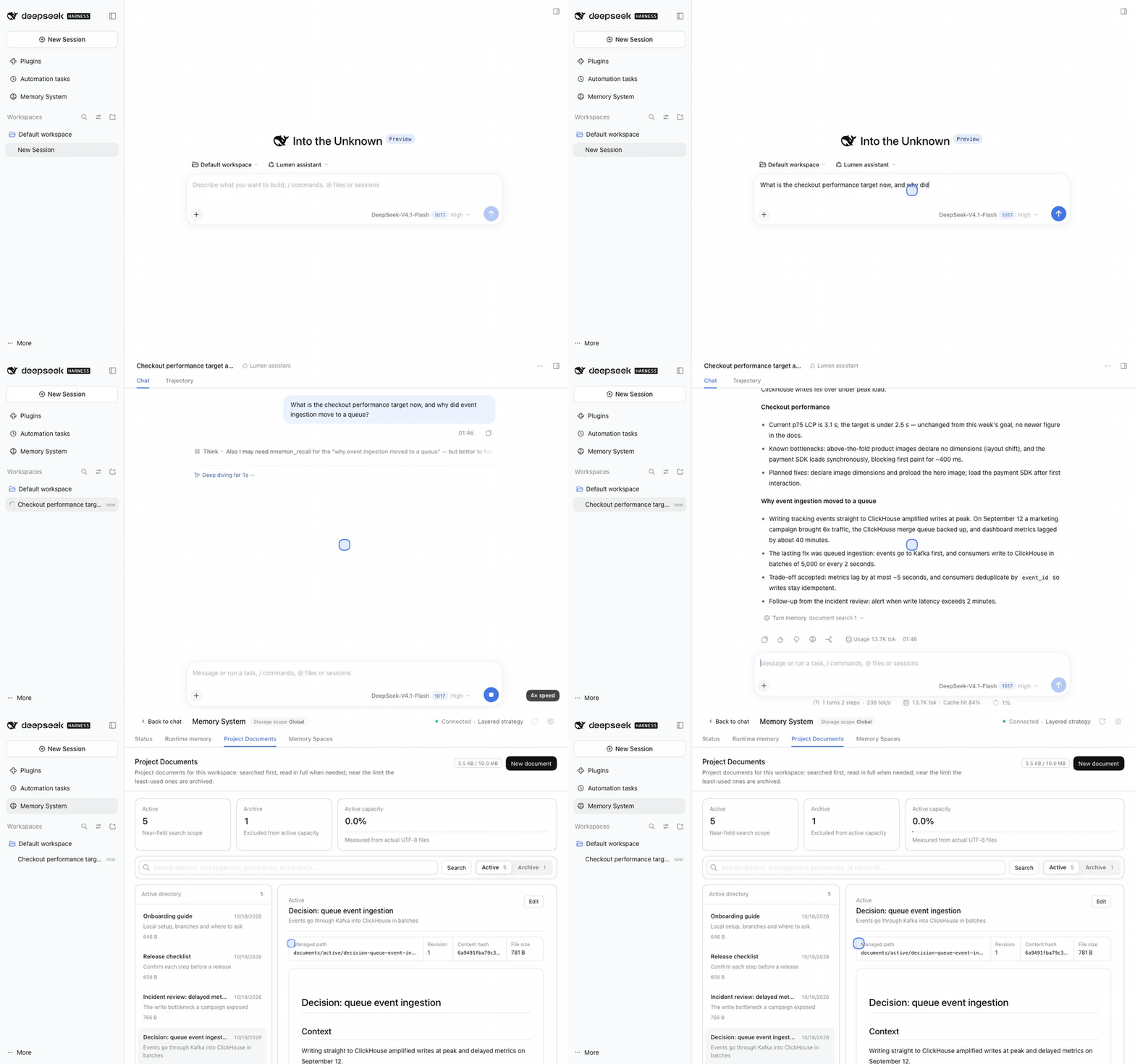
### Turn memory bar
A reply that used memory ends with a **Turn memory** line: the Memory System's brain mark, then how many recalls, document searches and writes the turn made. Expanded, it has one row per tool. On the left, the tool says in plain words what it did, such as **Document search** or **Memory Spaces recall ×2**; hover to see the tool's own name. On the right are the items it read or wrote.
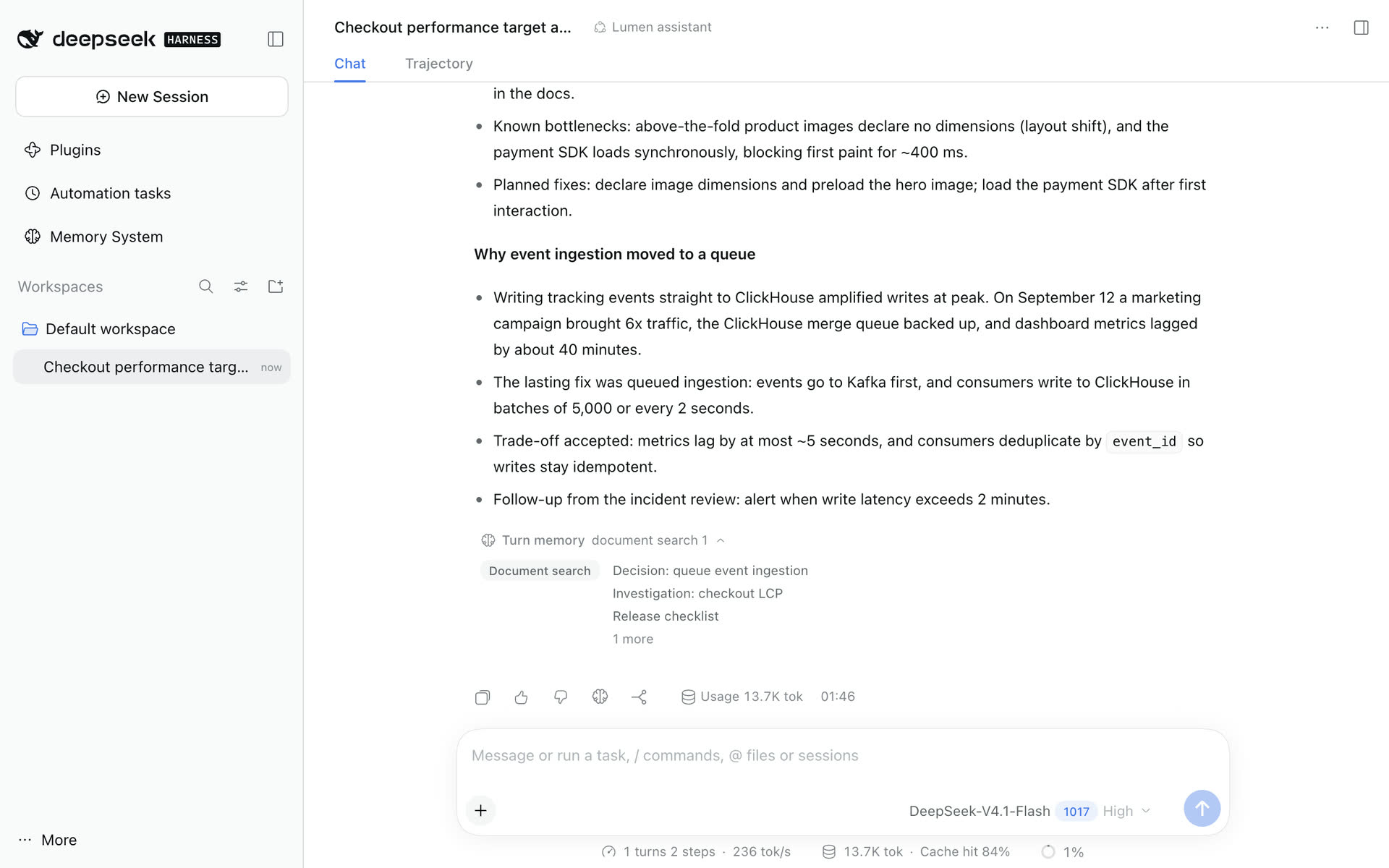
- Select a tool to open its page in the Memory System.
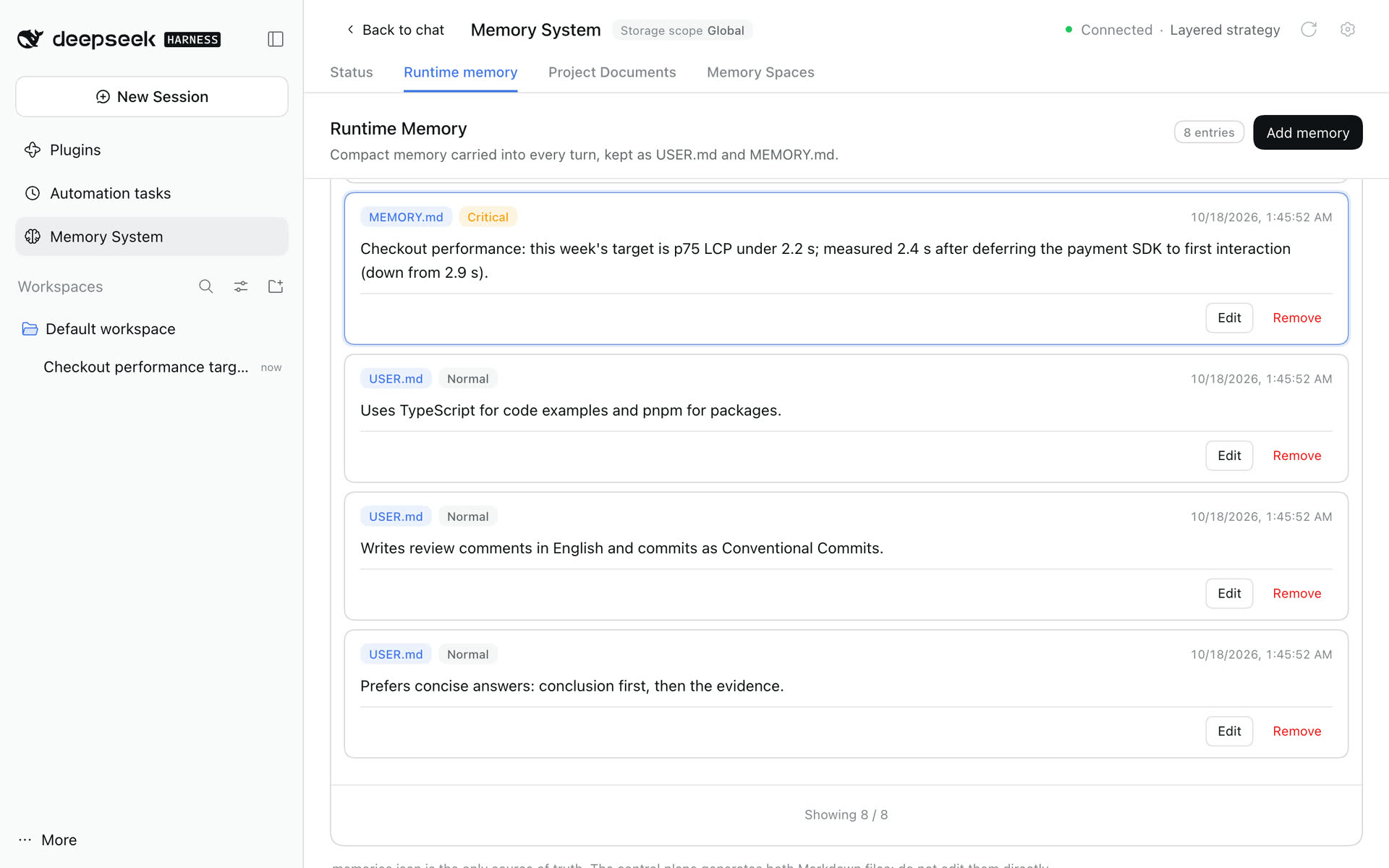
- Select an item to open it where it lives: a document is selected in **Project Documents**; a memory runs as a query on the **Recall** page; a runtime entry is highlighted and scrolled to in **Runtime memory**.
- Each tool lists up to three items and counts the rest; an item known only by its id stays out. On a phone, the items sit below their tool.
- Turns without memory activity show no bar.
When you correct a fact, the Agent replaces the runtime memory entry and the bar reports the write; select it to see the replaced entry. Here the Agent also updated the checkout LCP investigation in Project Documents, whose latest measurement no longer meets the target, so the bar lists a runtime memory write and a document update. [Watch the correction](../../assets/webui/en/correct.mp4).
| A correction and its writes | Its runtime item opens the entry, highlighted |
|---|---|
|  |  |
Temporary progress, guesses and secrets are not written.
### Save to memory
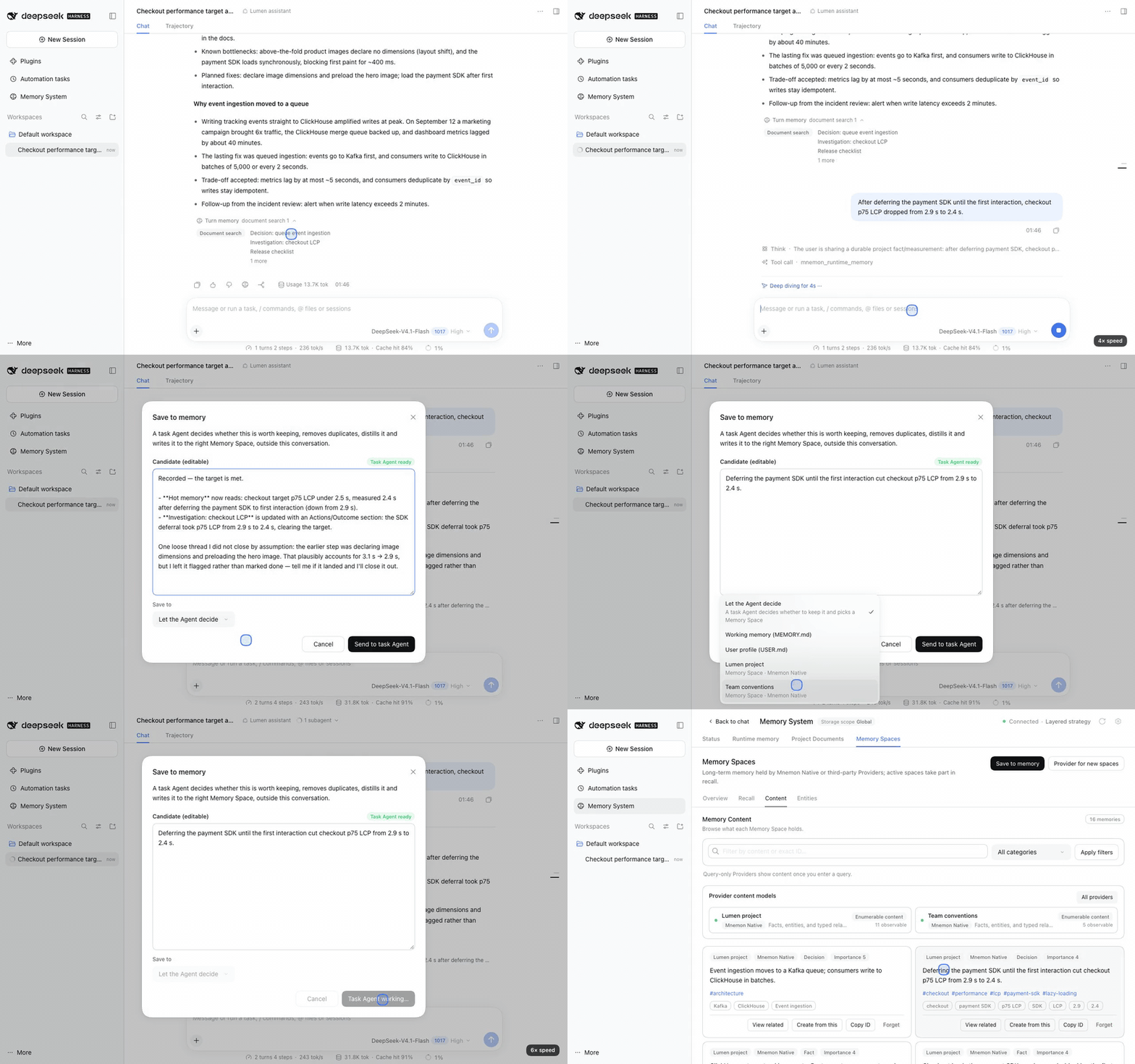
Each finished reply has a brain-shaped **Save to memory** in its action strip, the same mark as the Memory System; the database icon beside it is DSH's usage, not memory. Selecting it reads that reply and opens a dialog:
- The title is **Save to memory**, with one line on what happens to the text. **Task Agent ready** means the task Agent can take it.
- **Content** starts with the whole reply; usually you keep only the sentence worth remembering. **Cancel** changes nothing.
- **Save to** picks where it goes:
- **Auto** is the default while a task Agent can write. **Save** hands the text to an independent task Agent, which decides whether it is worth keeping, picks the right Memory Space, removes duplicates, distils and writes, outside the conversation.
- **Working memory (MEMORY.md)**, **User profile (USER.md)** or an active Memory Space by name: **Save** writes the text there at once, through the same write as that place's page; no task Agent decides where it goes. Working memory and the user profile keep it as one line. Before saving, the dialog says when the text is too long for one entry or for the file, and when the file is full: working memory then keeps part of its entries and moves the rest out, and a task Agent condenses the user profile, which needs one.
- A place is listed while its layer is on, its component runs and its writes are not switched off.
- Without a task Agent, or without a Memory Space Provider, the dialog starts on **Working memory** while it is listed. With no place open at all, it says so and sending stays closed.
- A receipt follows: the outcome (**Saved**, **Updated**, **Submitted; the Provider confirms later**, **Skipped**, **Partly saved**, **Not finished** or **Failed**), a summary of where the text went, and a link to it: **View in Memory Spaces**, or Runtime Memory for working memory and the user profile. A memory saved without a vector gets a line saying so: semantic matching misses it until the vector is filled in from the Mnemon Native embedding settings on [Memory Spaces' page](#memory-spaces-page), and keyword search still finds it. While **Manage embedding settings in DSH** is off, as it is by default, the line is a plain note that no embedding service is available; while it is on, the line is a caution that the embedding service set up there did not produce a vector. **Cancel** becomes **Close**. Sending the same text to the same place again needs an edit, and with **Auto** the task Agent takes the edited text as a new candidate; another place, or a send that failed, takes it as it is.
| Edit the candidate | Choose where it goes | The task Agent's receipt |
|---|---|---|
| 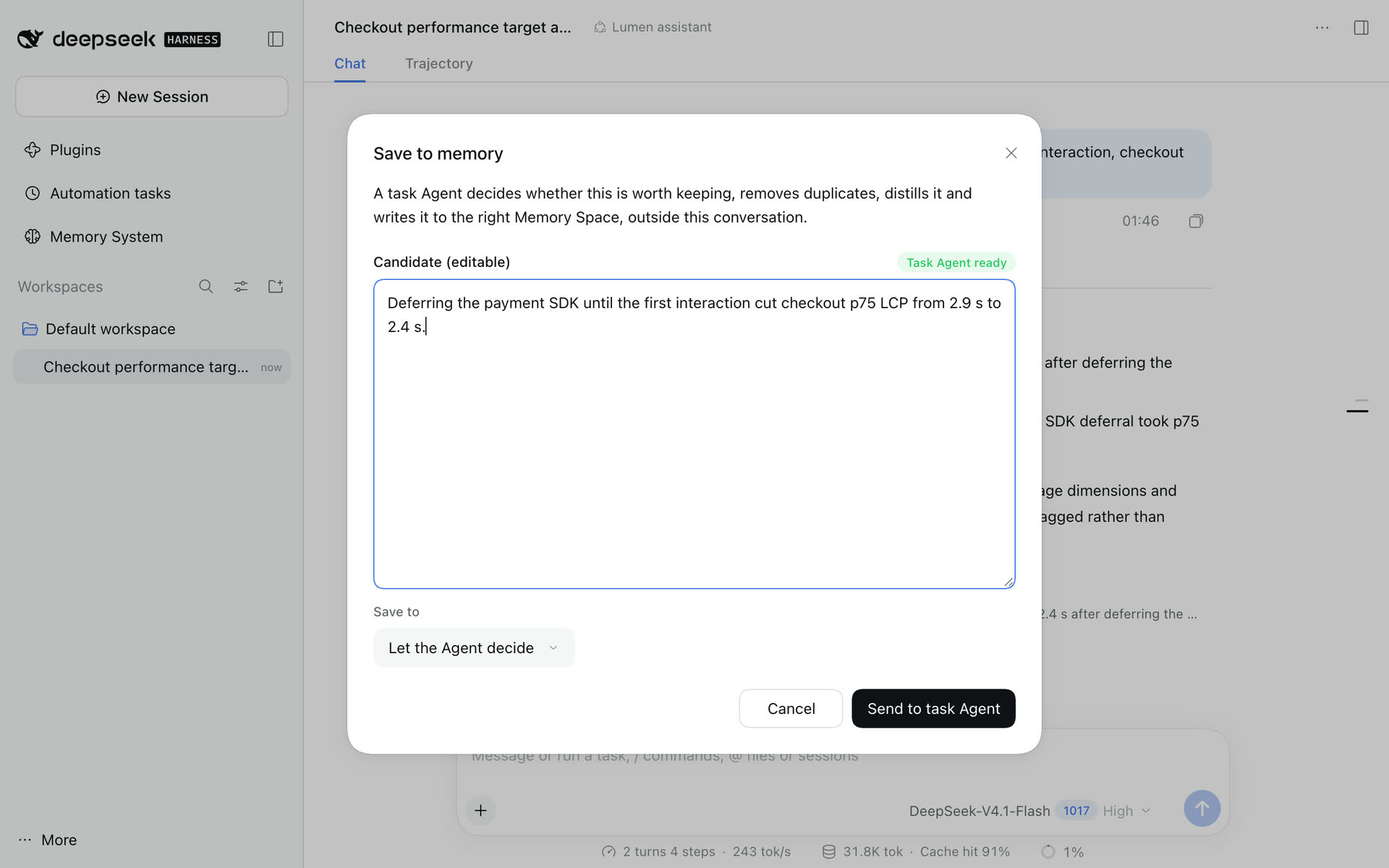 | 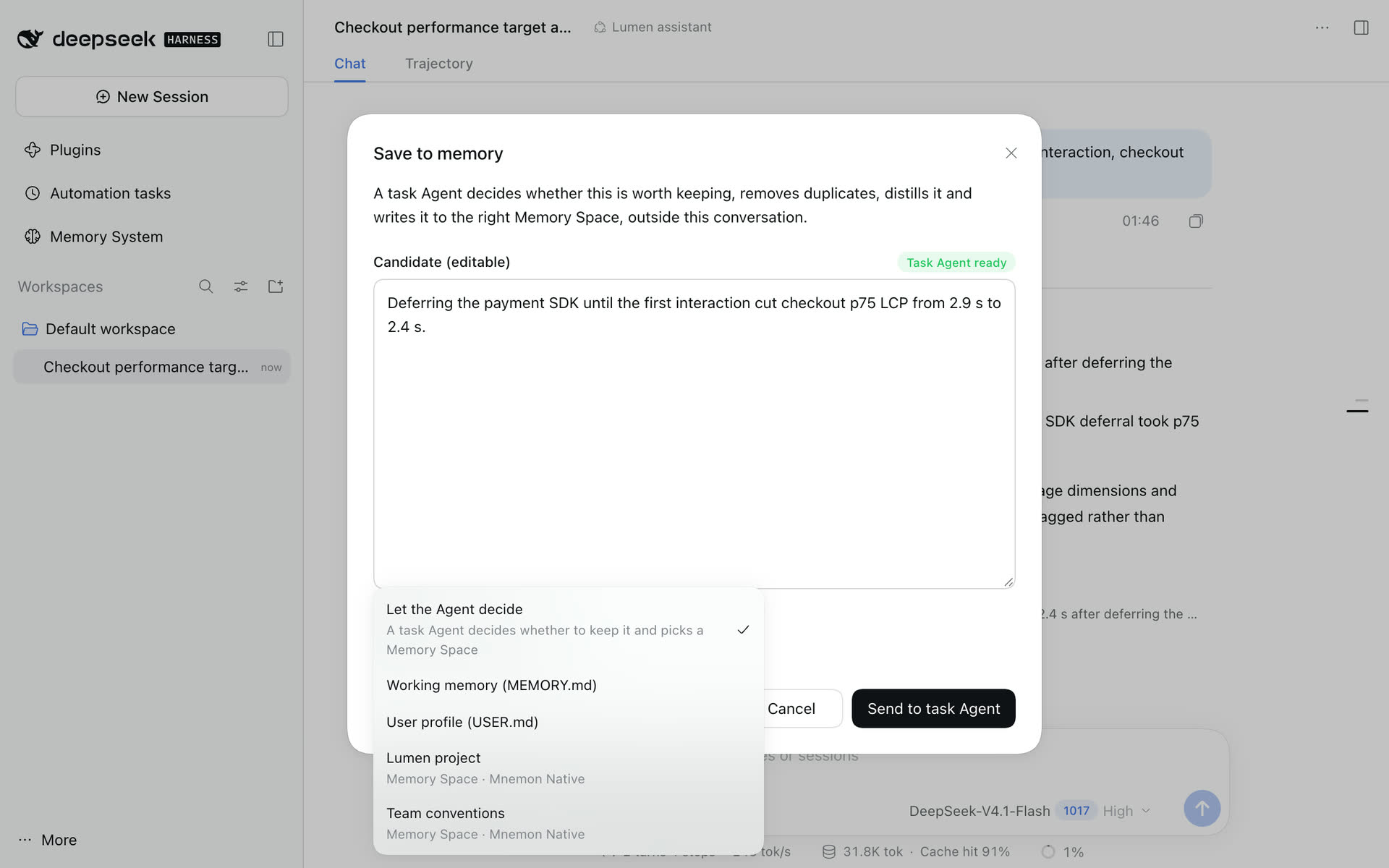 | 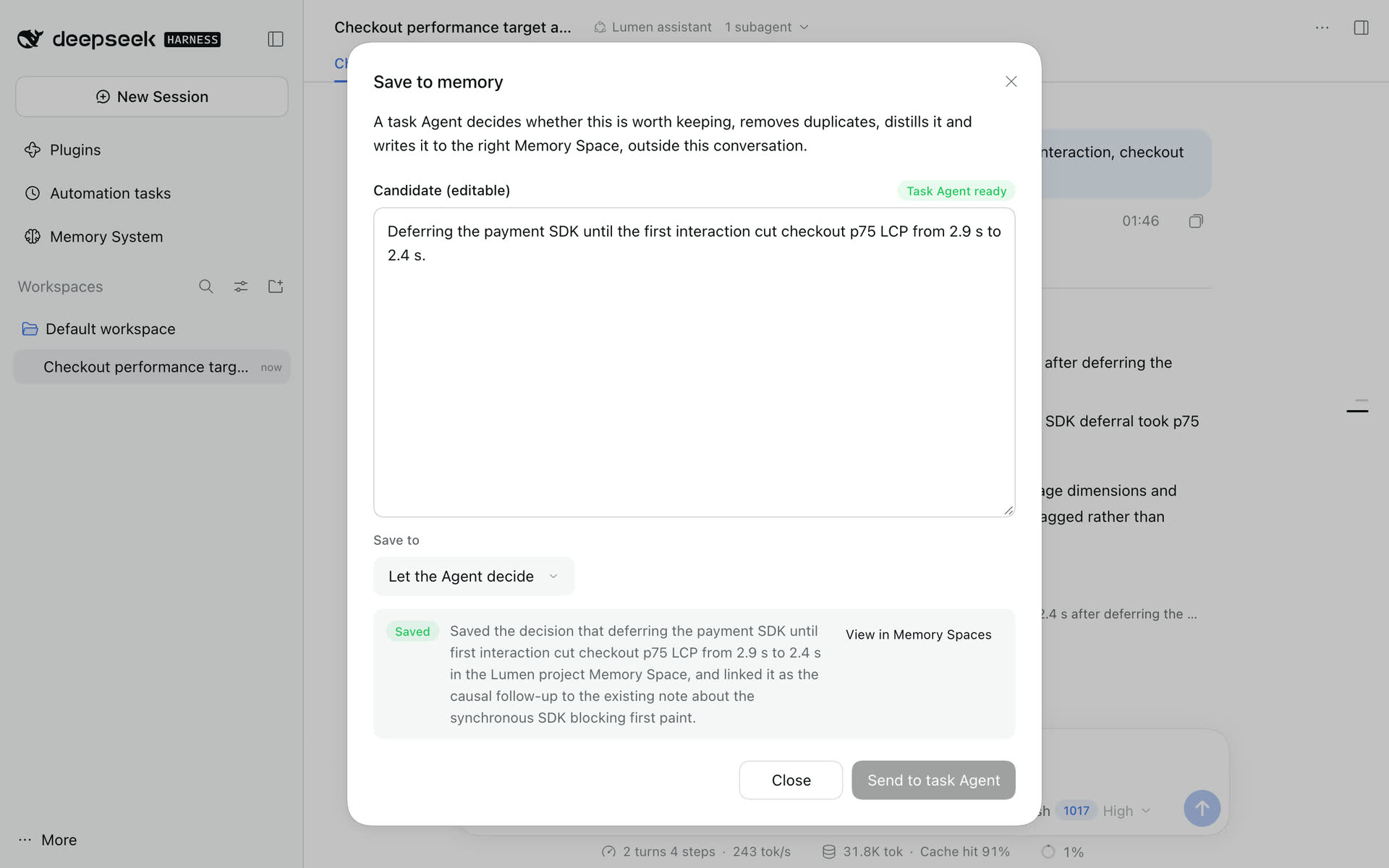 |
**Save to memory** at the top of Memory Spaces opens the Memory Spaces dialog, without the conversation's **Save to** choice. The turn memory bar and the Save to memory button are on by default and can be turned off under [Interface](#interface). In the conversation-tab placement, these entries open the Memory System tab of the conversation they came from; with several eligible tabs in split panes, open the intended one yourself.
### Turn skills line
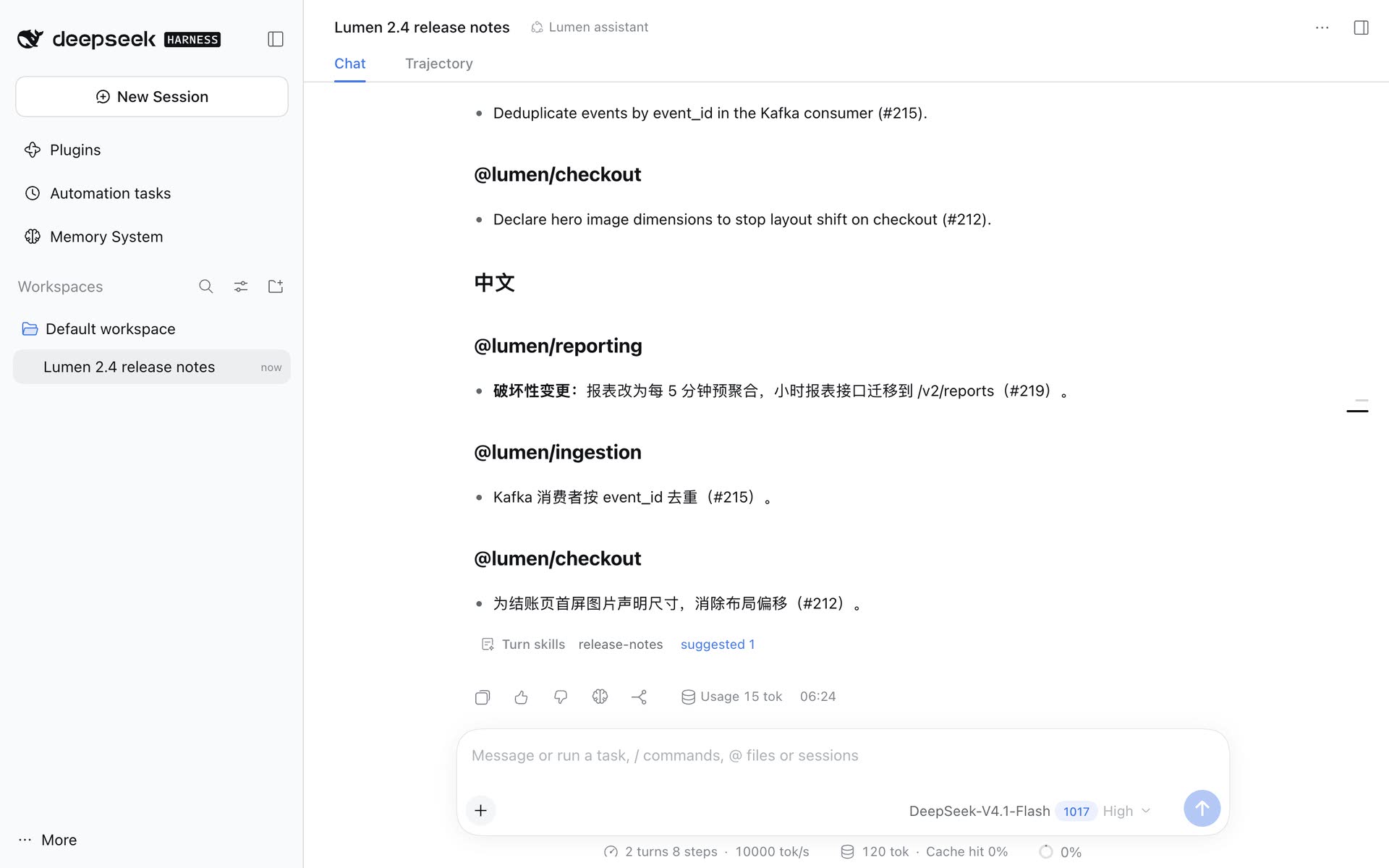
A turn that used a skill, or earned a review, ends with a **Turn skills** line: the skills the turn used, then **Reviewing** while self-evolution reviews the conversation, and **suggested** with a count once the review left suggestions. Each item opens on the [Skills page](#skills). The line is on by default; **In the conversation** on Skills' page under Plugins turns it off. See [Skills in a conversation](./skills.md#in-a-conversation).
Skill source directories are expandable groups showing their path and skill count. They start expanded; collapsing a group does not disable its skills or close the selected detail. Search temporarily reveals matching groups. On desktop the list fills its bounded pane and scrolls independently from the document; narrow screens retain a bounded list above the full document.
## The Memory System
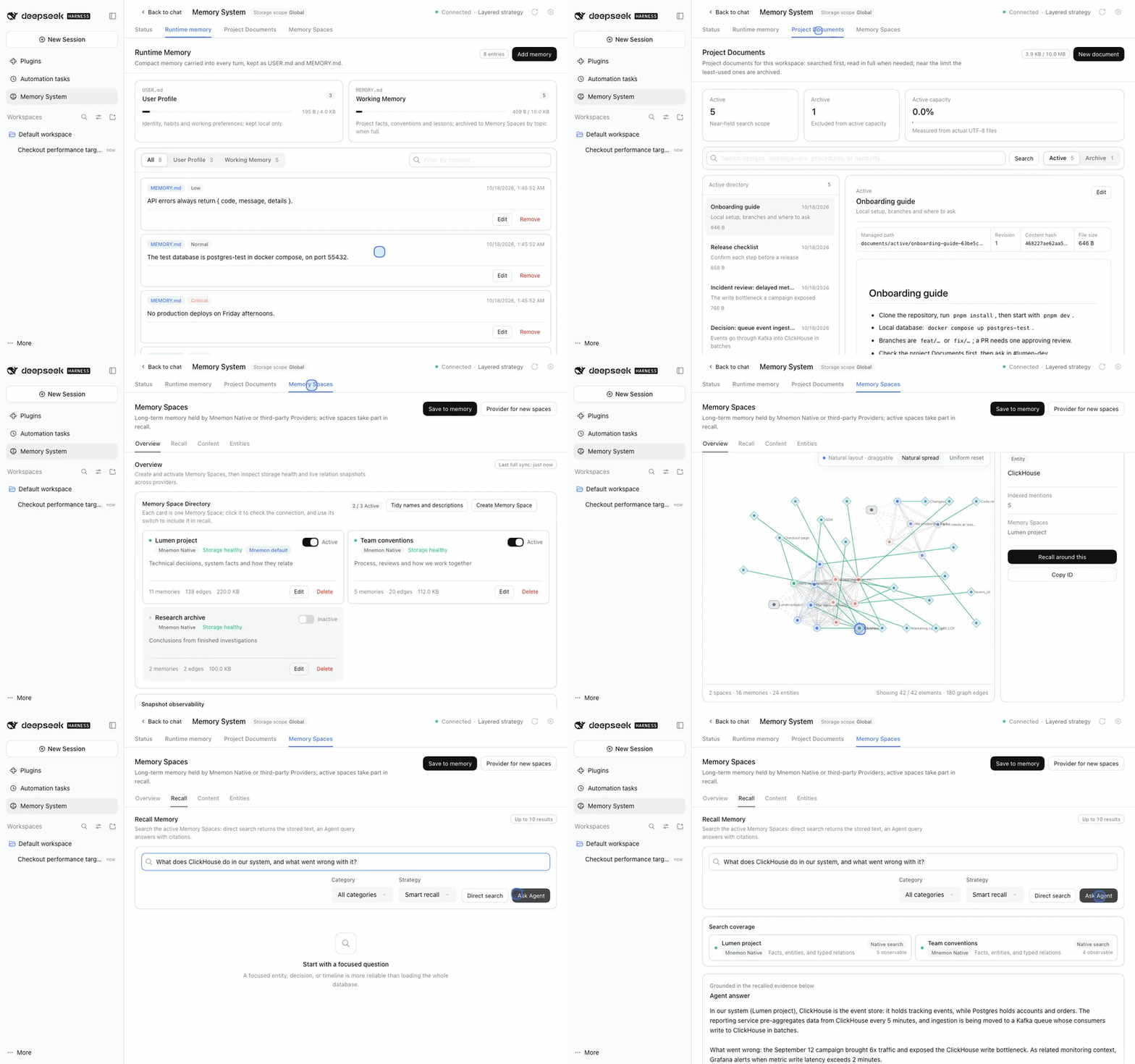
The Memory System has five pages, named by the components that provide them: **Status**, **Runtime memory**, **Project Documents**, **Memory Spaces** and **Skills**. An installed Source adds its own page the same way. Turning off a Source or its memory layer hides its tabs; turning it back on restores them. If the open page is turned off, the view returns to Status. The configuration entry stays available, and an enabled Source that fails to run keeps its diagnostic tab. The header shows the connection and the composing main strategy, for example *Connected · Layered strategy*, the storage scope, **Refresh** and a gear that opens the Plugins page. **Refresh** reloads the open page, so pages carry no refresh or sync buttons of their own.
When the panel is at most 520px wide, the title and actions share the first row and the workspace selector uses a second row. The connection dot, refresh, gear and any Back to chat action remain available. Remote read-only and paused idle-review guidance share a **Notices** summary: select it to expand the full text, or select it again to collapse it. This choice stays while switching pages. Errors, composition diagnostics and restart reminders remain visible. Wider panels show the full notices as before.
By default the Memory System is a sidebar entry that keeps its page when you come back. Opened from a turn's item, a page lands on that item; a tab in the header opens the page fresh. Under **Interface → Memory System opens in**, choose **Conversation tab** to open it inside a conversation instead; the pages are the same. **Back to chat** and Escape return to the conversation.
Leaving the panel or hiding its browser tab pauses automatic inspection and polling. Returning refreshes the visible context while preserving a draft that still belongs to it; an operation you already started can finish. The skills line lets the conversation render first, shares one activity read across its turns, and keeps an empty result when you switch away and back without a new turn. Pending reviews resume when their conversation is visible again. Skill edits and manual reviews update existing turn bars; temporarily unavailable history is retried when you return.
### Status
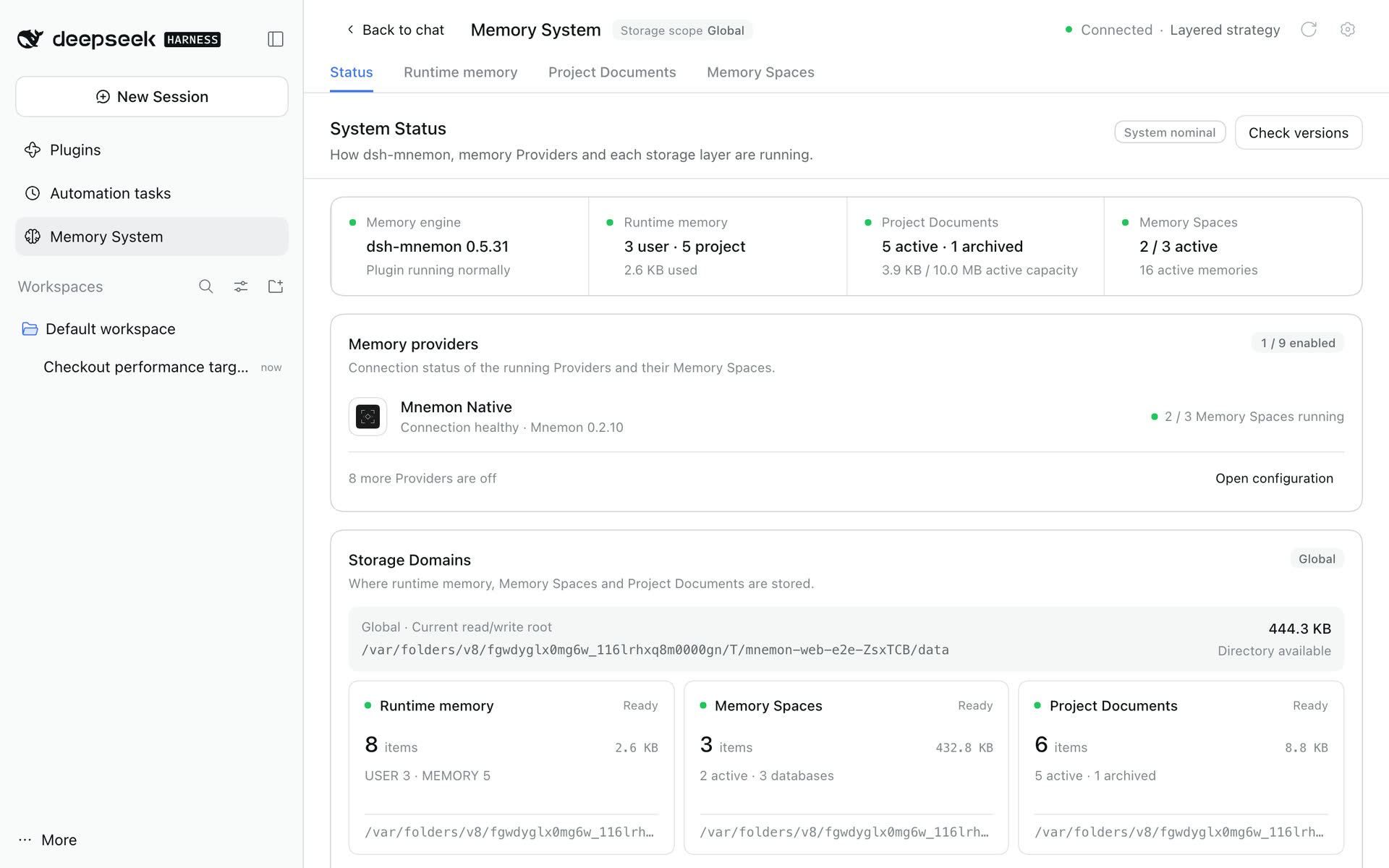
The top row has one card per component: the engine with its version, then each Source with what it holds. **Memory providers** lists only the running Providers with their spaces' connection state and sums up the rest in one line, *N more Providers are off*, with **Open settings** beside it; the storage areas follow. Regions load independently; one failure never hides the rest.
A notice with **Open settings** appears only when memory needs attention:
- **Memory not in use**: no main strategy runs, so conversations continue without memory.
- **The selected main strategy is not running**: another strategy composes memory for now.
- **The latest component change did not take effect**: the previous composition keeps serving.
**Versions** is read-only. It tells whether the Mnemon CLI is missing, current or out of date, with the npm command to copy, and lists each subpackage's installed, published and pinned version. When a newer dsh-mnemon exists, **Update** installs it through DSH's own plugin installer, in the desktop app too. Restart DSH after updating packages; until then, a notice above every page names the installed version. [Version checks and updates](./operations.md#version-checks-and-updates) explains each case.
### Runtime memory
Runtime memory is the compact context injected into every turn. **User profile** (`USER.md`) holds who you are, your preferences and collaboration rules. **Working memory** (`MEMORY.md`) holds project facts, environment, decisions and lessons. Each card shows its size against its limit. Opened from a turn, the entry that turn wrote carries a highlighted border; see [the correction above](#turn-memory-bar).
- Entries are newest first, with filters for target and text. Editing an older entry keeps its place. **New** opens the dialog for a new runtime entry.
- Keep entries short, independent and repeatedly useful; temporary progress and raw logs do not belong here.
- A working-memory entry can be limited to git branches. It is then injected only while the session's workspace is on one of them; the page and the files on disk are unaffected.
- When working memory reaches its limit, the Host archives its entries into a memory space, keeps the most important ones that fit in about 70% of the limit, and adds the new one. With no memory space that can take them, for example without the Mnemon CLI or another Provider, the entries it does not keep move to the local archive `runtime/archived/MEMORY.md` in the data directory instead.
Editing, capacity and branch details
Edit and Remove match an entry's full content within its target, so a short entry such as `X` can change without touching `EGO_LINUX_CHROME`. Identical entries in one target are ambiguous and are rejected without changing data.
Capacity archiving moves the exact original entries. If a routing batch fails or returns an invalid proposal, that batch goes to the eligible default memory space, or the first eligible one, and the summary records why. Spaces created or activated during the current turn can receive the archive once they are active and support it. If a memory space could take the archive but this turn cannot write to it, existing entries stay intact and the pending add is not saved; retry it in a new turn after fixing the cause. With no memory space that could take it at all, the entries that are not kept move to the local archive instead.
When the Agent writes the user profile, `branches` must be omitted or empty. For working memory, `branches: []` on replace clears the scope; omitting it keeps the scope. The model-facing snapshot adds each entry's importance and age in days for the new turn; stored text is unchanged. See [projection format and limits](../reference/storage-model.md#source-of-truth-and-projections).
### Project Documents
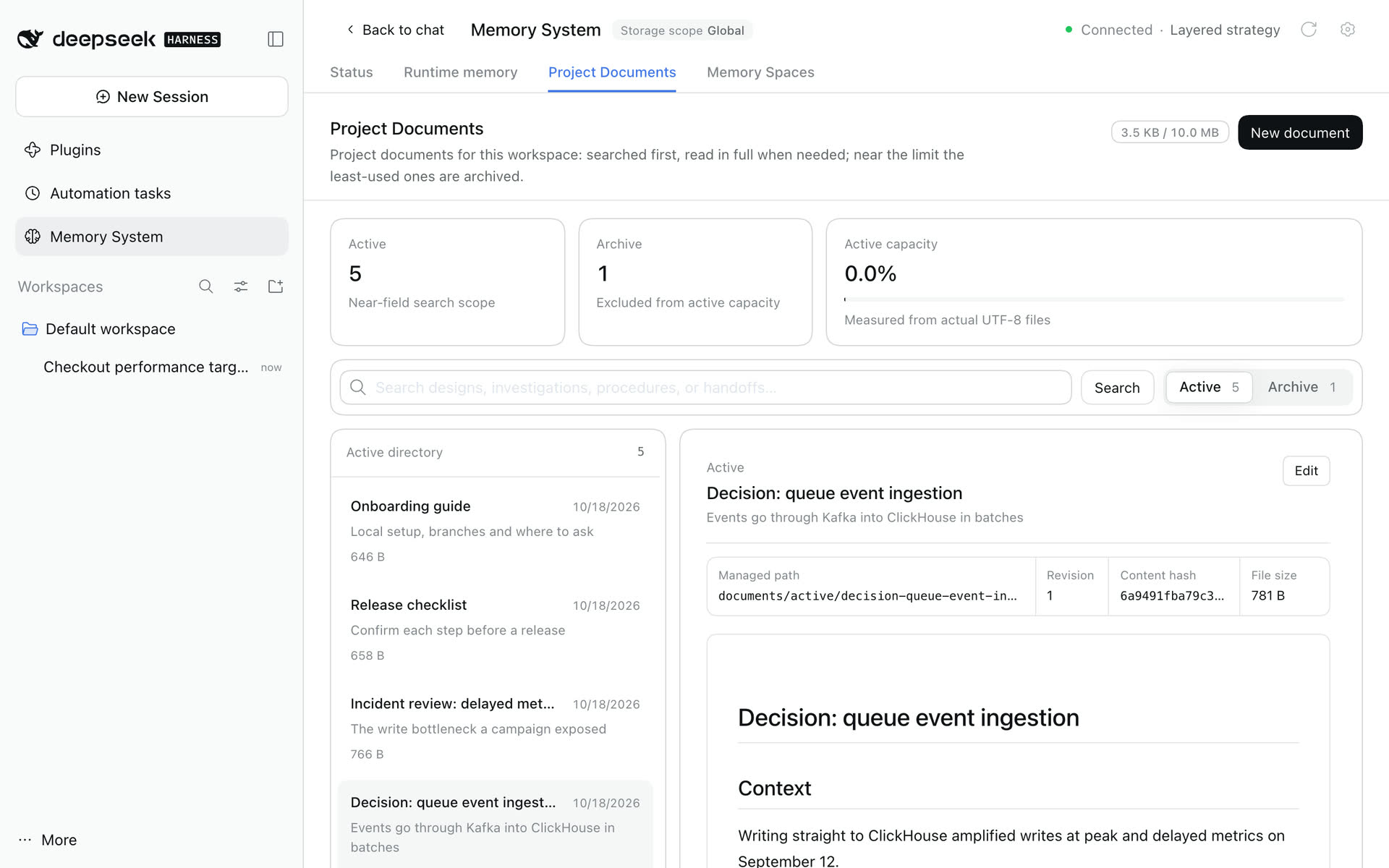
Documents hold complete narratives: designs, investigations, procedures and handoffs. Select a DSH workspace first; documents belong to a workspace even when storage is global.
Conversation tools bind Project Documents to the session workspace (`session.header.cwd`). Ordinary subagents inherit the parent workspace: changing a command directory, including a delegated task's initial directory, does not move the Documents destination. If a conversation in project A delegates commands in project B, its Documents still belong to A's selected storage. To create a Document for B, open a conversation in B's DSH workspace or select B in Memory System and use manual Documents management. With `workspace` / `workspaces`, this identity selects the separate store; `global` / `custom` can share one physical store.
- Switch between **Active** and **Archived**. The reader keeps the title, retrieval description, provenance, revision, hash, size and full Markdown.
- Search matches the title, description and body. Lists are newest first; updating an older document does not move it.
- Source files in your project are never modified; a document is a managed copy.
- **Delete** beside the detail title permanently removes an active or archived managed copy and its index record after confirmation. It runs without a model or archive task and creates no Memory Space index; existing Memory Space entries remain. The list and capacity refresh after deletion. If the document index or managed file changed while confirmation was open, cancel, refresh and review the latest copy before trying again.
- Archiving indexes the document in a memory space before moving the original, so the cold copy stays findable. The destination must be active and support exact writes and safe forget. With no such memory space at all, the document is archived locally without an index and stays readable under **Archived**.
Archiving and idle review details
When a memory space can take the index, for an explicit archive or capacity maintenance, an independent task Agent without memory tools proposes a summary and one eligible memory space. A local archive needs no task Agent: the Host moves the original and notes why there is no index. The Host validates it, adds the exact cold path and content hash, writes the index and records lineage before moving the original. An invalid proposal changes nothing. If the move fails, the Host removes only the index it just created; existing verified indexes are reused and never deleted. If cleanup fails or the Provider outcome is uncertain, inspect the reported destination before retrying.
Idle review never edits existing documents. It searches first, skips what is covered, and creates a separate supplementary document only for substantial new knowledge; with no capacity left, it skips creation. It reuses evidence already in the finished conversation and cannot reopen files.
### Memory Spaces
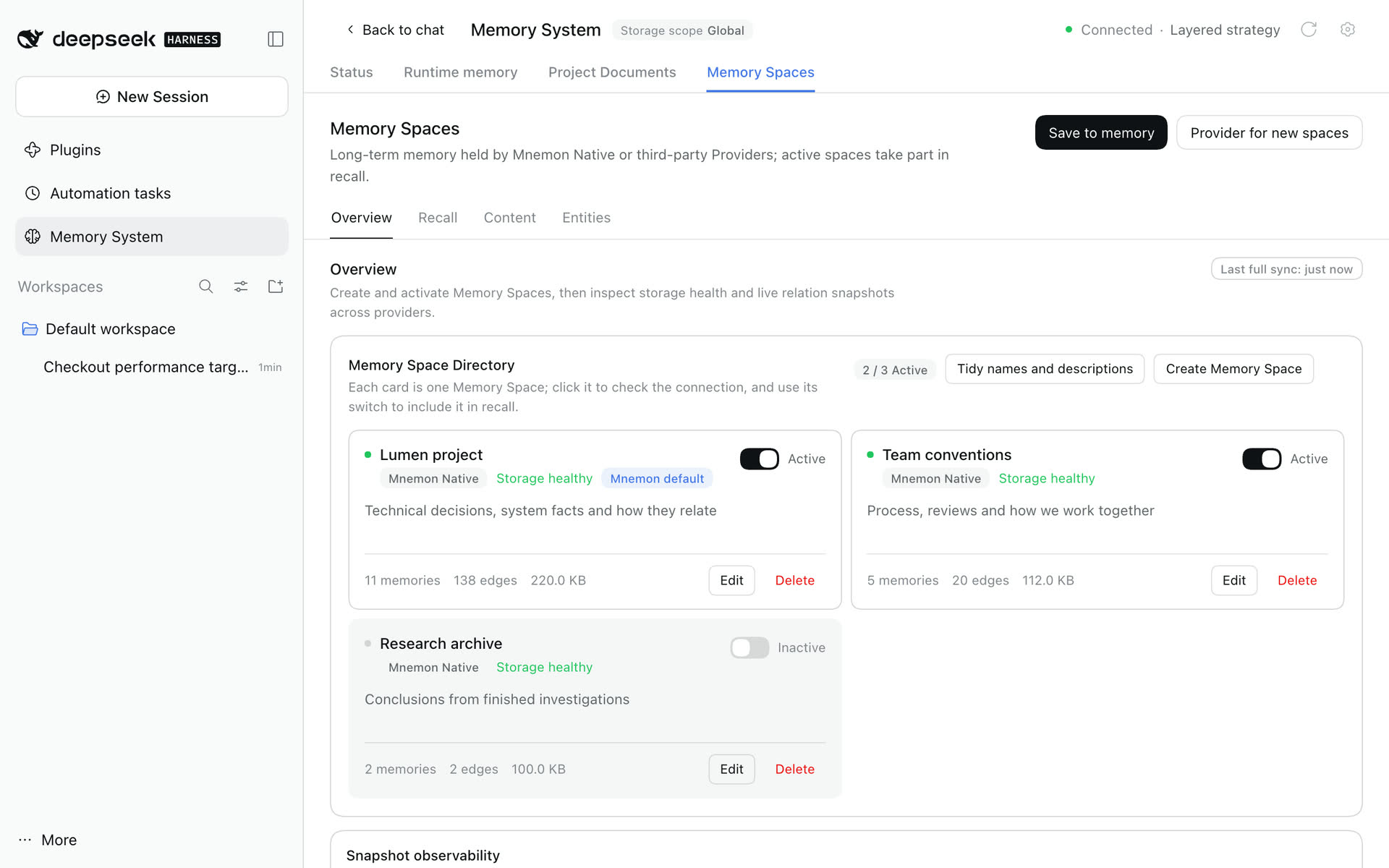
A memory space is one named scope of long-term evidence on one Provider. **Overview** lists the spaces as cards; the switch on a card decides whether dsh-mnemon reads it, and the tag names its Provider, such as Mnemon Native. Clicking a card reconnects only that space. **Save to memory** and **Space policy** sit at the top right, with **Recall**, **Content** and **Entities** beside Overview.
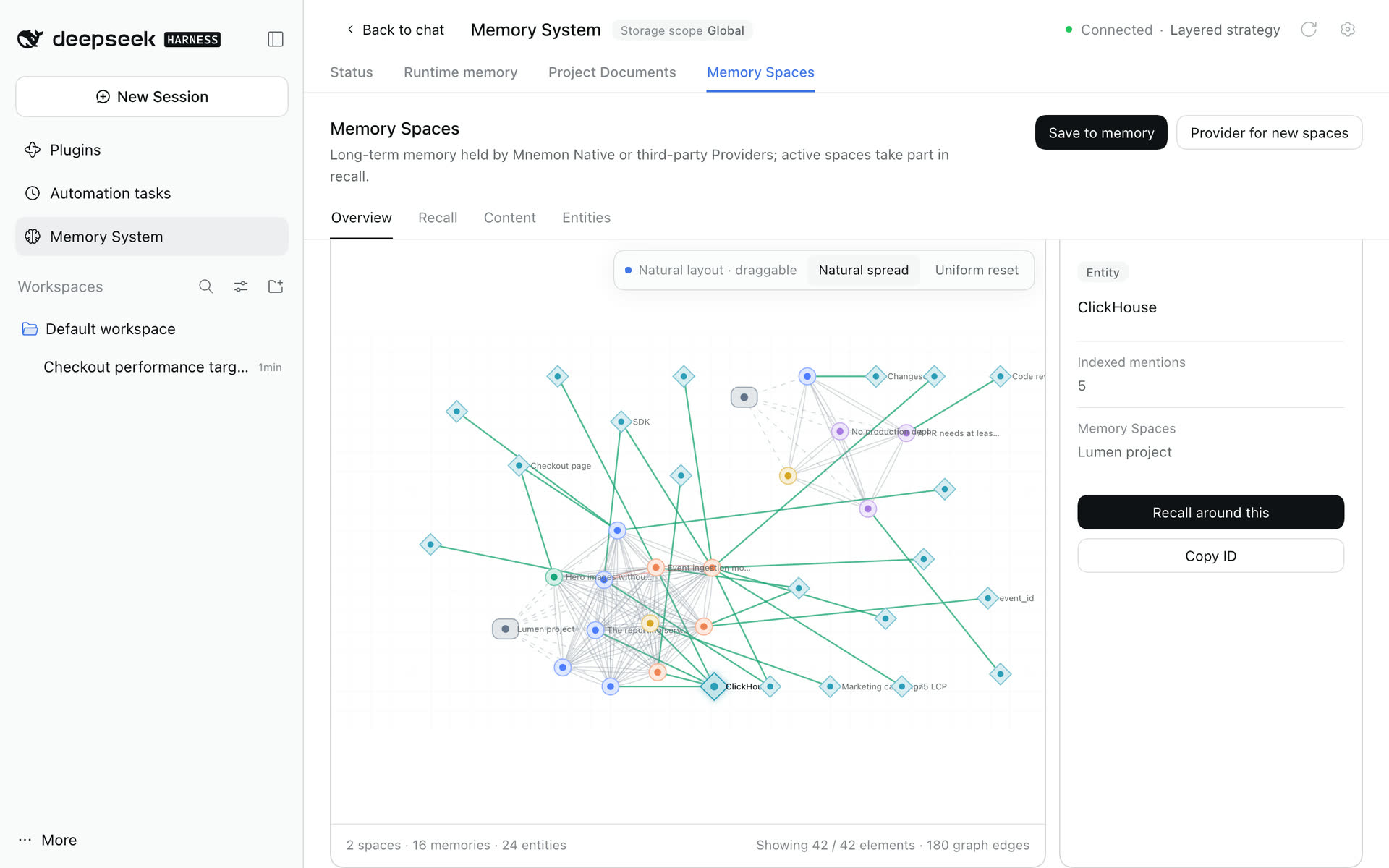
Below the cards, the graph merges what the active spaces can show: memories, entities, and the links between them. Select a space, entity or memory to see its context on the right, here the ClickHouse entity with **Recall**. Layout, dragging and reset only change the picture. The footer counts spaces, memories and entities, and how many elements are drawn. Use **2D / 3D** in the graph toolbar to keep the default 2D SVG view or switch to a zero-dependency 3D `